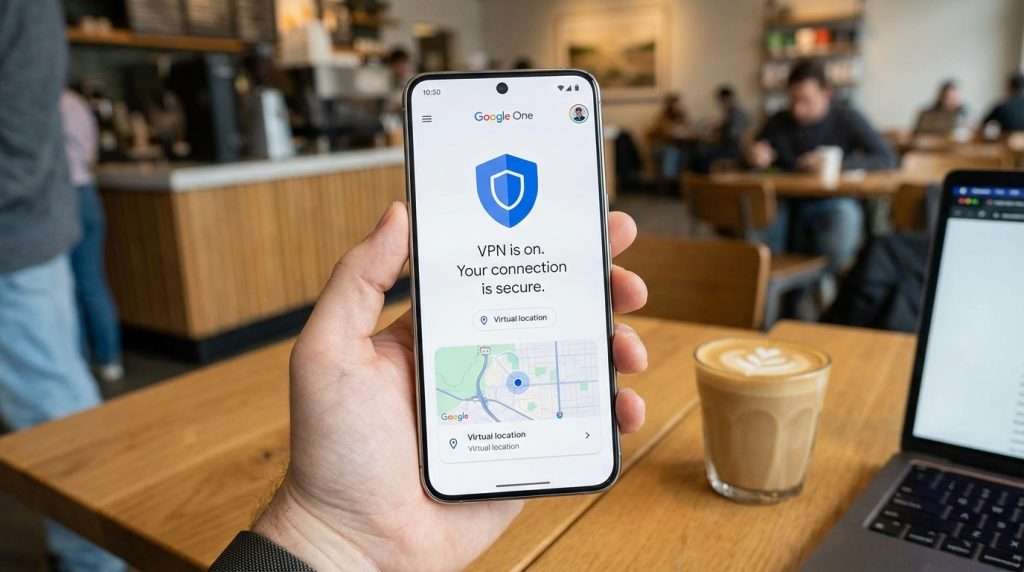
Google has introduced a subtle yet practical improvement to the free VPN service integrated into Pixel phones. This update focuses on the quick settings tile, which now provides users with clear, immediate information about their VPN connection status. Previously, the tile merely indicated the VPN was active by changing colour, without showing detailed status updates.
With the latest update, the larger quick settings tile (2×1 size) dynamically displays one of four VPN states: Connected, Paused, Connecting, or Can’t connect. When connected, the tile appears as a filled rectangular shape with curved corners. If paused, it reverts to a lighter shade and a pill shape. This visual feedback eliminates the need to long-press the tile to check the VPN’s condition, streamlining user interaction.
This enhancement is rolling out gradually, reportedly triggered by a server-side change rather than a direct app update. Users of Pixel 7 and newer models can access the VPN by navigating to Settings > Network & internet > VPN > VPN by Google. Activating the VPN adds a tile to the quick settings panel, which can be expanded to the 2×1 size to view the new status indicators. Due to space limitations, the smaller 1×1 tile does not show these details.
Google’s free VPN, which replaced the earlier Google One VPN on Pixel devices, aims to provide seamless privacy and security without additional cost. This update reflects Google’s ongoing efforts to enhance user convenience and transparency in managing VPN connections. By making the VPN status more visible at a glance, Pixel users can better understand their network protection in real time.
As this server-side rollout continues, Pixel owners should keep an eye out for the updated quick settings tile. The change is a modest but welcome improvement, simplifying how users monitor their VPN connection. It’s another step in refining the Pixel experience, blending functionality with ease of use.